Showing posts with label PeopleSoft. Show all posts

Friday, 2 September 2011

PeopleSoft Search

If you’ve been browsing my blog directly, you may have already noticed the PeopleSoft Search link on the site’s header. This is simply a Google Custom search engine pointing to sites containing relevant PeopleSoft technical content. This includes mostly forums and blogs.

I find this useful when I need to search for keywords that are not specifically related to PeopleSoft. Following is an example result when searching for “excel”:
Sample Search result

I still have trouble filtering out RSS from the results, if anyone can help me with that.

Now, if you’re browsing my site using Firefox 2, you may also notice the following auto-discovered PeopleSoft Search item on your search bar:
Firefox Search Engines

Following is how the auto-discovered search would like it IE7:
IE7 Search Engines

This plugin is packaged using the OpenSearch standard, as described in this Mozilla article.

The plugin can also be installed by clicking the following link:

Install PeopleSoft Search

Thursday, 1 September 2011

PeopleSoft – Remedy Integration

Client: Leading Healthcare Solutions Provider


Solution: PeopleSoft – Remedy Integration


The client was a leading Healthcare Insurance, Medicare and Medicaid Programs provider and they wanted to integrate their existing PeopleSoft system with the Remedy, IT service management suite, to synchronize and get single source of truth of their asset information. The Drivestream team studied the client’s complex business processes to understand the data flow between the Remedy and their PeopleSoft system and proposed an auto-trigger dual integration program, which would run as a part of night job. The team configured PeopleSoft integration broker to send and receive data from the Remedy system and also built a process to segregate the valid data in PeopleSoft that has to be sent across to the Remedy system. The systems were seamlessly integrated and the client was able to get a holistic view of their asset information.


Menu Items Not Getting Displayed in PeopleSoft PIA Page

In the PeopleSoft PIA page, some of the menu items might not get displayed due to it’s expire date – ’2010-12-31'. This issue can be tackled by following the below mentioned steps,

Run the below script to update the PORTAL_EXPIRE_DT

  update PSPRSMDEFN set PORTAL_EXPIRE_DT=’2099-12-31' WHERE PORTAL_EXPIRE_DT=’2010-12-31'


  SELECT PORTAL_EXPIRE_DT from PSPRSMDEFN where PORTAL_EXPIRE_DT <> ’2099-12-31'

In the PIA page, goto PeopleTools–>Portal–>Portal Security Sync and enter the new Run Control ID and run the process

After the sucessful run of the process,

Restart the process scheduler, the application server and the web serverClear the cache and the browser cache

All the menu items  in the PIA page will get displayed.


Wednesday, 31 August 2011

Restrict external access to PeopleSoft with Squid


I recently had to expose a client’s PeopleSoft installation to the outside world, which I did in the usual manner (additional PIA in the DMZ etc).


We wanted to use the “closed by default, open by exception” approach, so we would start by blocking access to everything and then open the areas we needed access to URL by URL.  I suspected that the final ‘URL Whitelist’ might take many iterations to get right and as the Reverse Proxy in the DMZ was outside of my control I needed to trial it somewhere else first.


I commandeered one of our less frequently used environments and went about searching for a quick/free method of blocking access.  After trying a few different approaches I settled on Squid, the open-source forward-proxy / web-caching server.  Although it’s better known for running on Unix systems, there is a Windows implementation and it can operate perfectly well as a reverse-proxy.


Once I’d downloaded and unzipped the binaries, and installed it as a service (using this helpful write-up as a guide) it was just a case of setting the rules.


In the ACLs section I added my bad and good URLs:

acl bad_url urlpath_regex *DEV*acl good_url urlpath_regex "c:\squid\etc\good-urls.squid"

This would block any URL with DEV in (my chosen environment was DEV), but then allow any URLs in the ‘good-urls.squid’ file.  I then had specify in the http_access section what to do with these ACL groups.

http_access allow good_urlhttp_access deny bad_urlhttp_access allow all

It took me a few goes to get this right as the last line confused me for a while, but luckily there are copious notes in the provided .conf file:


If none of the “access” lines cause a match, the default is the opposite of the last line in the list.  If the last line was deny, the default is allow. Conversely, if the last line is allow, the default will be deny.


I was happy leaving my PeopleSoft environment on port 80 and Squid on 3128 as this is just a temporary setup for my testing.  Obviously Squid would be on port 80 if this was a production setup.


I amended the default port line thus:

http_port 3128 defaultsite=xxx.yyy.com

(where xxx is the hostname and yyy is the domain name)


And finally I added this line:

cache_peer 127.0.0.1 parent 80 0 originserver default

I used 127.0.0.1 as Squid is on the same host as the PIA, and the rest is for forwarding.


In the Web Profile ‘Virtual Addressing’ tab, add the reverse proxy details.  This willensure that PeopleSoft uses the reverse-proxy port number.  Bounce the PIA.


If you want a nice custom ‘Access Denied’ page instead of the default Squid one, they can be found in ‘C:\squid\share\errors\English’.  They have no file extension, but they’re HTML so a cinch to amend.


This is largely going to vary depending upon what you want to expose to the external users.  A lot of what we opened up were custom pages so there isn’t a lot of value sharing the full file here.  Having said that, here is a snippet of our file:

*login**css*/psp/ps/EMPLOYEE/HRMS/h/**/cs/ps/cache/**/ps/images/**/psc/ps/*viewattach**/psp/ps/EMPLOYEE/HRMS/c/ROLE_EMPLOYEE.GP_SS_EE_PSLP.GBL**/ps/ckeditor/**/psc/ps/EMPLOYEE/HRMS/c/HRS_HRAM.HRS_CE.GBL**/psp/ps/EMPLOYEE/HRMS/c/HRS_HRAM.HRS_CE.GBL**/psc/ps/EMPLOYEE/HRMS/s/WEBLIB_TIMEOUT.PT_TIMEOUTWARNING.FieldFormula.IScript_TIMEOUTWARNING*/psc/ps/EMPLOYEE/HRMS/\?cmd=expire*/psp/ps/EMPLOYEE/HRMS/\?cmd=expire*/psp/ps/EMPLOYEE/HRMS/\?cmd=logout

Lines 1 and 2 sort out the signon page.


Line 3 is the Employee Portal homepage.


Lines 4 and 5 are for images.  Lines 6 and 8 are for viewing attachments and the Rich Text editor.


Lines 7, 9 and 10 are sample PeopleSoft pages/components.


The remainder deal with the timeout and signout links.


(Assuming that your PIA site is ‘ps’)


And you’re done.  There are a few little quirks to note.


Firstly, every time you change your URLs file you’ll need to restart the Squid service, but it’s a quick process so doesn’t hold you up too much.


Secondly, PeopleSoft frequently uses the ‘?’ special character as a URL delimiter so Squid only matches against the characters before this point.  There are several occasions when you need to match against the full URL which is why I’ve used url_path_regex in the ACL section above.  This allowed me to escape the special characters so that the log-out, time-out and view attachment links work ok.

Be the first to like this post.

PeopleSoft and IE9


It seems that IE9 behaves slightly differently to other browsers when displaying some PeopleSoft pages, and this results in pages that look a little odd.  Areas of whitespace appear between page objects, and fields that are nicely laid out in other browsers are mis-aligned in IE9. Strangely it doesn’t happen on the homepage, but it does on every other page.


Here’s an example:


So what causes it, and what can be done about it?


It seems as though the disparity between the homepage and other pages is caused by the browser switching between the Standards and Quirks rendering modes. I’ve performed cursory testing in Firefox (v4.0), IE (v8.0 and v9.0) and Chrome (v10.0) and they all render the PeopleSoft homepage in Quirks mode by default and other pages in Standards mode.  I suspect that this is due to the lack of a doctype in the homepage – as this is present in other pages.


There’s an excellent bookmarklet here which tells you which render mode you’re currently in (although you can also use browser specific tools like Firefox developer’s toolbar and the IE Dev Tools).


Regardless of which mode Firefox and Chrome are in they render the page correctly (and by this I mean ‘as we are used to seeing it’, it may not be syntactically correct!).  The same is true for IE8, it’s just IE9 that displays the page differently if in Standards mode (which it will be for all pages other than the homepage.


So, how do we fix it?  I basically insert a directive into the PeopleSoft HTML template for all non-homepage pages telling IE to act like an earlier version.  It’s not the most elegant solution but it seems to do the trick, at least until something official comes along.


Open PT_HNAV_TEMPLATE and look at the 4th line.  It should look like this:


Comment this line out and add a line below, thus:


You shouldn’t even need a Web or App Server reboot.  The new template forces IE9 to behave like IE7 and displays your PeopleSoft pages correctly.

Be the first to like this post.

Changing the Favicon in PeopleSoft – The “How to”


Last week I posted a blog entry highlighting why I think adding a favicon to PeopleSoft can be a helpful visual aid for your users.  This post walks through how I did it – note: I’ve only tested this in Tools 8.50.


It’s probably a good idea to have one for each environment excluding Production that shows the environment name, and then have Production as the corporate logo (or your PeopleSoft system logo etc).  I created my 32×32 pixel images in GIMP as it can save as a .ico file, but any graphics package will do (as will this online ico creator).  I didn’t experiment with other sizes or file formats, let me know if you do and I’ll update the post.


Upload your icons as images in App Designer.


We need to create a function to provide the correct image for each environment as we’ll be calling this from more than one place.  I added my function to WEBLIB_PT_NAV.ISCRIPT1 as we’ll be customising it later anyway.

Function GetFavicon() Returns string Local string &Favicon; Evaluate %DbName When = "DEV" &Favicon = %Response.GetImageURL(Image.<>); Break; When = "TST" &Favicon = %Response.GetImageURL(Image.<>); Break; ...etc... End-Evaluate; &Favicon = ""; Return &Favicon;End-Function;

You need to amend both PT_HNAV_TEMPLATE and PT_IFRAME_HDR_SWAN HTML templates so that the code for the Favicon can be passed in.


Amend PT_HNAV_TEMPLATE thus (I’m just showing the top 6 lines – lines 4 and 5 are the ones I’ve added):

%bind(:23)
...

Amend PT_IFRAME_HDR_SWAN thus (I’m just showing the top 5 lines – lines 3 and 4 are the ones I’ve added):

%bind(:25)...

Note: Your bind numbers may vary. You can check they’re correct when we get to the calling functions shortly.


The final step is to amend the PeopleCode so that the string provided by our GetFavicon function is passed into our HTML definitions.  Open PT_BRANDING.BrandingBase.  Scroll down to where the delivered code is declaring functions (it’s around line 155 for me) and declare the function that you created in Step 2.


Next, find method ‘getIframeHeaderHTML’ and scroll down to near the bottom.  You’ll see a call to one of the HTML objects that you just amended ‘PT_IFRAME_HDR_SWAN’.  Add your function as a parameter to the end thus:

&hdrHTML = GetHTMLText(HTML.PT_IFRAME_HDR_SWAN, &charSet, ... , &hoverNavLoc, GetFavicon());

As a double-check, you should also make sure that it’s the same number parameter as the bind variable that you added in the previous step.


You’ll need to make a similar change for the other HTML template.  Open WEBLIB_PT_NAV.ISCRIPT1.FieldFormula and search for the function ‘buildIframeTemplate’.  Again, scroll down to the end of the function and add your function as a parameter to the end:

Return GetHTMLText(@("HTML." | &templateHTMLObjName), &charSet, &requiredToolsSS, ... , &ptcxmCollapseImgURL, GetFavicon());

Again, make sure that the parameter number matches the bind number in the HTML file (PT_HNAV_TEMPLATE) earlier.


You should be able to sign in and see the results immediately.  Good luck and let me know how you get on!

Be the first to like this post.

Custom toolbars on PeopleSoft Rich Text Boxes


If you’re on Tools 8.50 or 8.51 you’re probably familiar with the new Rich-text edit boxes by now.  They allow you to amend the text with formatting, colour, links, images etc.  This is how a field looks when the default Rich Text toolbar is applied:


This is all very good when the field is in a nice empty page, where there’s plenty of space for a large toolbar.  Many pages have a lot of fields on, and the addition of a bulky toobar might make the page appear busier and more crowded.  Also, some users may get confused with the wide choice of buttons available.


I faced a similar issue today.  I needed to have the user enter some text and be able to embed links, but because of the design aesthetics of where the results would be output, I wanted to discourage the user from having lots of different colours, font sizes etc. So I wanted to reduce the toolbar so it had just two buttons – add link and remove link.


It turns out that there’s a pretty simple way of customising the toolbar. 


Against the Page Field properties of the Long Edit box there is an Options tab (you probably used it to make the field Rich Text).  The first drop-down allows you to select alternate configurations (they’re all HTML Objects).  There isn’t a delivered one that did what I wanted, so I took an existing one and modified it.


I opened an existing one (‘PT_RTE_CFG_PTPPB’) and took a look at the contents:


FCKEditor configuration file for Pagelet Wizard HTML Data Source
-->
CKEDITOR.config.skin='office2003';
CKEDITOR.config.toolbar =
[
['Source','-','Maximize','Preview','Print','-','Cut','Copy','Paste','-','Undo','Redo','-','Find','Replace','-','HorizontalRule','Table','imageUPLOAD','Link','Unlink','SpecialChar'],
['Format','Font','FontSize','-','Bold','Italic','Underline','Strike'],
['JustifyLeft','JustifyCenter','JustifyRight','JustifyBlock','-','NumberedList','BulletedList','Outdent','Indent','-','TextColor','BGColor']
];


It’s pretty clear to see that each toolbar button is represented by an entry in the CKEDITOR.config.toolbar section. I cloned the delivered one and reduced the toolbar section down to:
CKEDITOR.config.toolbar =
[
['Link','Unlink']
];


This had the desired effect of reducing the toolbar to exactly what I needed, but it had introduced an unwanted bottom section which shows the HTML tags for the edit box.


There was nothing in the config file that I’d specified that had introduced this, so where had it come from?


It turns out that when you specify a config file, it overwrites the default values.  After a good deal of searching I located them in:


\webserv\\applications\peoplesoft\PORTAL.war\\ckeditor\config.js


Not only does it specify the defaults for the toolbar, but it also contains the lines:


config.resize_enabled = false;
config.removePlugins = ‘elementspath’;


Once I’d added these two lines to my config HTML object my rich text box displayed exactly as required – a much simpler and more compact edit box containing just the toolbar buttons that I want:


Be the first to like this post.

Changing the Favicon in PeopleSoft


A Favicon (short for favorites icon, also known as a shortcut icon, website icon, URL icon, or bookmark icon) is a small logo that appears next to the website URL in the browser address bar.  This website has the favicon from WordPress, as that’s the blogging platform that I use.


Although adding a favicon made the web surfing experience marginally more attractive (the favicon also appears in your bookmarks/favourites menu to make it easier to identify each website, for example) it was pretty unimportant to us in the PeopleSoft world.  Now that tabbed browsers are starting to proliferate into company workstation rollouts the favicon is starting to become more useful.


As an example, can you identify these 9 favicons from my open browser tabs (I’ve redacted the text from a couple as they’re pretty easy):


I’m quite a fan of finding methods to make it easy to differentiate your PeopleSoft environments.  I think it’s a useful productivity tweak to be able to instantly know whether you’re in DEV, TST or PRD without having to check the address bar and parse through the URL (for less technical business users especially).


Wouldn’t it be useful to have a different Favicon for each environment?  That way you can easily tell which tab you need.  When you’re trying to find a specific environment that you’ve logged into, how useful is it to go from this:


to this:


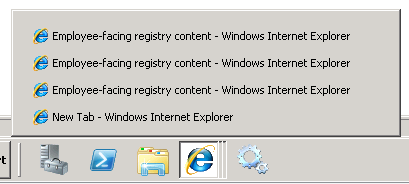
And with grouped taskbar buttons being the default in recent versions of Windows, it’s also handy to go from this:


to this:


So how is it done?


It’s not a big customisation, although it does obviously touch a couple of Tools objects.  I’ve written it up here.

Be the first to like this post.